


Malware infections are one of the most frustrating problems that Windows users encounter. Your computer may run slowly, pop-up ads may appear everywhere, unknown programs may install themselves, or your browser might redirect to suspicious websites.
If you don’t have antivirus software installed, or if you want to remove malware manually, don’t worry. In this guide, you’ll learn how to remove malware from Windows 10 and Windows 11 without using third-party antivirus software. This step-by-step tutorial is easy for beginners and safe to follow.
____________________________________________________________________________________________________
What Is Malware?
Malware is short for malicious software. It includes harmful programs designed to harm your computer, steal data, or spy on you.
Common types of malware include:
- Viruses
- Trojans
- Spyware
- Ransomware
- Adware
- Rootkits
Both Windows 10 and Windows 11 are targets for malware attacks because they are commonly used worldwide.
______________________________________________________________________________________________________
Signs Your Windows PC Is Infected
Before removing malware, confirm the symptoms. Here are common warning signs:
- PC running very slowly
- Frequent pop-up ads
- Browser redirects to unknown websites
- Unknown programs installed
- High CPU usage without reason
- Windows security disabled automatically
- Files missing or encrypted
If you notice one or more of these problems, follow the steps below carefully.
_________________________________________________________________________________________________
Step 1: Disconnect from the Internet

The first thing you should do is disconnect your PC from the internet.
Why?
Malware can communicate with hackers remotely. Disconnecting stops further damage.
How to disconnect:
• Turn off Wi-Fi
• Unplug Ethernet cable
• Enable Airplane Mode (if available)
________________________________________________________________________________________________
Step 2: Boot into Safe Mode
Safe Mode starts Windows with minimal drivers, preventing malware from running automatically.

How to Enter Safe Mode in Windows 10 & 11
- Press Windows + R
- Type msconfig and press Enter
- Go to the Boot tab
- Check Safe boot
- Click OK
- Restart your PC
Alternatively:
- Click Start
- Hold Shift and click Restart
- Select Troubleshoot
- Choose Advanced Options
- Click Startup Settings
- Press 4 for Safe Mode
Now your system runs in Safe Mode.
_______________________________________________________________________________________________
Step 3: End Suspicious Processes in Task Manager

Malware runs as hidden background processes.
- Press Ctrl + Shift + Esc to open Task Manager
- Click Processes
- Look for:
- Unknown names
- High CPU or Memory usage
- Right-click suspicious processes
- Click End Task
⚠️ Important: Do not end system processes you don’t recognize. If unsure, search the process name online.
______________________________________________________________________________________________________
Step 4: Uninstall Suspicious Programs
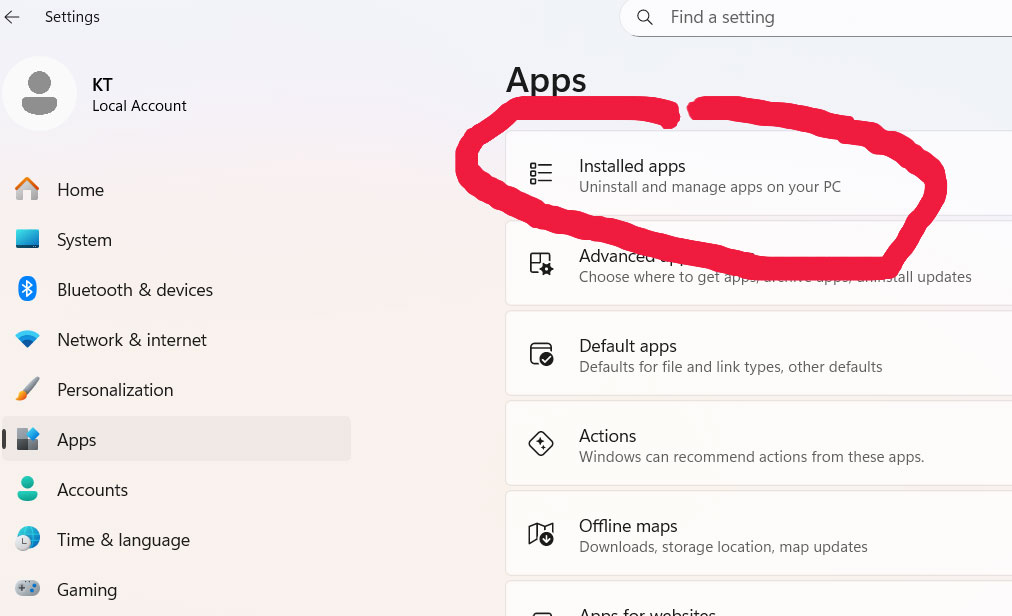
Malware often installs itself as software.
How to Remove Suspicious Programs
- Press Windows + I
- Click Apps
- Go to Installed Apps (or Apps & Features)
- Look for:
- Unknown programs
- Recently installed suspicious software
- Click Uninstall
Restart your PC after uninstalling.
__________________________________________________________________________________________________
Step 5: Delete Temporary Files
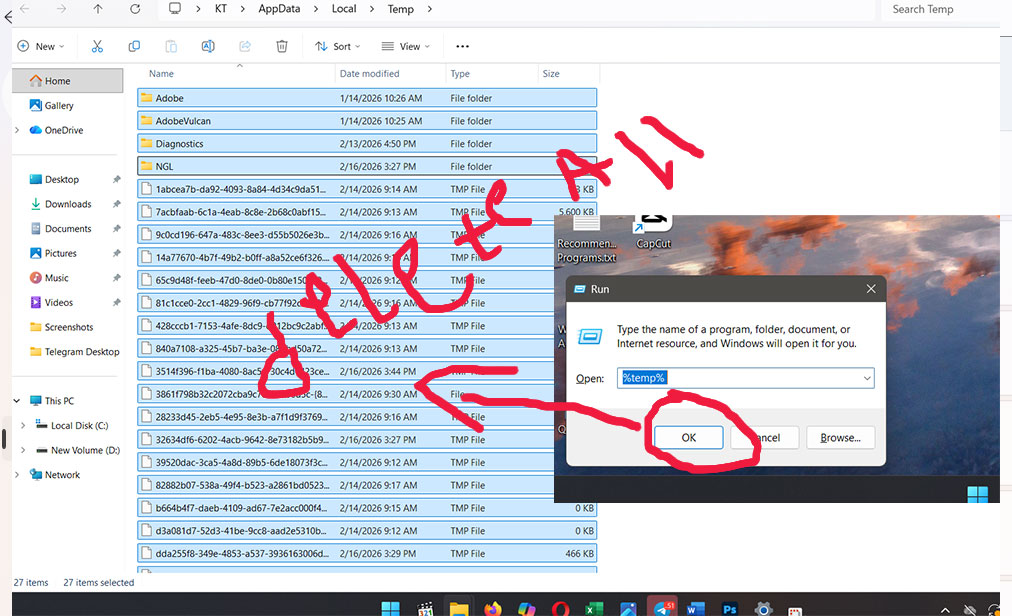
Temporary files may contain malware scripts.
Use Disk Cleanup
- Press Windows + R
- Type cleanmgr
- Select your system drive (C:)
- Check:
- Temporary files
- Recycle Bin
- Thumbnails
- Click OK
You can also manually delete:
- Press Windows + R
- Type %temp%
- Delete all files inside
This removes hidden malicious files.
_____________________________________________________________________________________________________
Step 6: Check Startup Programs
Malware often starts automatically when Windows boots.
Disable Startup Malware
- Open Task Manager
- Click Startup
- Look for suspicious programs
- Right-click and select Disable
Restart your computer normally.
________________________________________________________________
Step 7: Reset Your Web Browser
Many malware infections target browsers.
If you use:
- Google Chrome
- Microsoft Edge
- Mozilla Firefox
You should reset them.
Reset Google Chrome
- Open Chrome
- Click three dots
- Go to Settings → Reset Settings
- Click Restore settings to original defaults
Do the same for Edge or Firefox.
This removes malicious extensions and hijackers.
_______________________________________________________________________________________________________
Step 8: Use Windows Built-in Security Tool
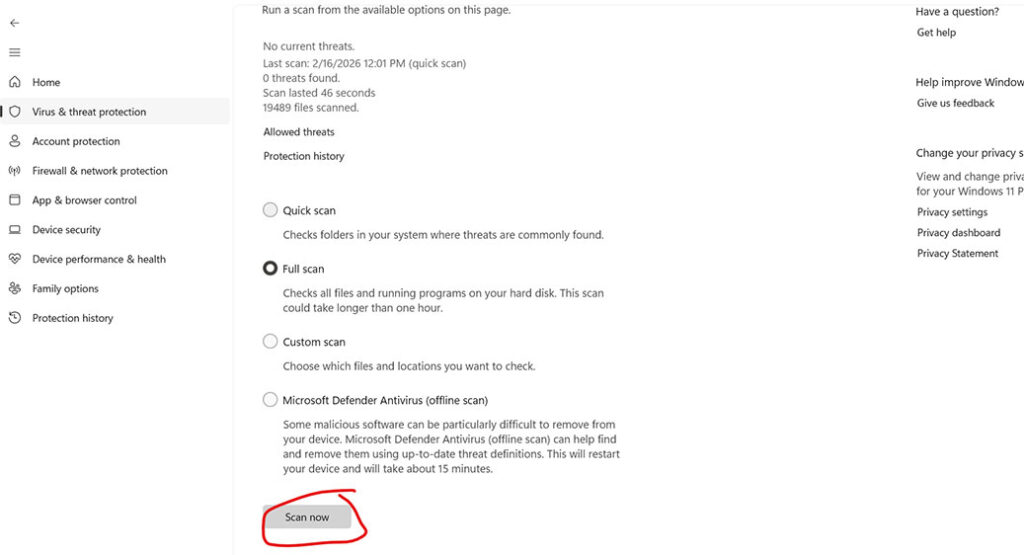
Even without third-party antivirus, Windows has built-in protection called:
Windows Security (Microsoft Defender)
Both Windows Defender and Microsoft Defender Antivirus are built into Windows.
Run a Full Scan
- Click Start
- Search Windows Security
- Click Virus & Threat Protection
- Click Scan Options
- Choose Full Scan
- Click Scan Now
This may take 1–2 hours.
Remove any threats found.
______________________________________________________________________________________________
Step 9: Check for Unknown User Accounts
Some malware creates hidden accounts.
- Press Windows + R
- Type netplwiz
- Check for unknown users
- Remove suspicious accounts
_____________________________________________________________________________________________________
Step 10: Restore Windows to an Earlier Point
If malware still exists, use System Restore.
- Press Windows + R
- Type rstrui
- Choose a restore point before infection
- Follow the on-screen instructions
This restores your system safely.
__________________________________________________________________________________________________
Step 11: Reset Windows (Last Option)
If nothing works, reset Windows.
How to Reset Windows 10 & 11
- Open Settings
- Click System
- Select Recovery
- Click Reset this PC
- Choose:
- Keep my files (recommended first)
- Remove everything (if infection is serious)
This completely removes malware.
________________________________________________________________________________________________
How to Prevent Malware in the Future
Follow these security tips:
- Keep Windows updated
- Avoid cracked software
- Don’t download unknown files
- Use strong passwords
- Enable Windows Defender real-time protection
- Avoid suspicious email attachments
- Install updates regularly
_________________________________________________________________________________________________
Frequently Asked Questions (FAQ)
Can I remove malware without antivirus?
Yes. You can use Safe Mode, uninstall suspicious apps, clean temporary files, and run Windows Security scans.
Is Windows Defender enough?
For most users, built-in Windows Defender offers good protection.
Will resetting Windows remove malware?
Yes. A full reset removes all malware and infections.
___________________________________________________________________________________________________
- Final Words
Malware can seriously damage your system, steal personal data, and slow down your PC. The good news is that you can remove malware from Windows 10 and Windows 11 without installing third-party antivirus software.
By following this step-by-step guide:
- Boot into Safe Mode
- Remove suspicious programs
- Clean temporary files
- Reset your browser
- Run Windows Security full scan
You can fully clean your system safely.
If the infection is severe, resetting Windows is the last solution.
Reference
Learn More