


WhatsApp Problems & Solutions - Ultimate Troubleshooting Guide
Welcome to the most complete WhatsApp troubleshooting resource online. Whether you’re having trouble connecting, sending media, backing up chats, or fixing installation errors, this page offers practical solutions you can apply today.
1. Installation & Setup Issues
Before we address common WhatsApp errors, many issues arise at the beginning: installation and account setup. Here’s how to resolve the most common problems during installation and setup:
a) WhatsApp won’t install.
If WhatsApp doesn’t install on your phone:
✔️ Check device compatibility:
WhatsApp only supports newer Android/iOS versions. Older devices, like Android 2.2 or below, are no longer supported.
✔️ Free up storage:
Not enough disk space is a common roadblock. Go to your phone’s **Settings → Storage** and delete old files or apps.
✔️Use official sources:
Install WhatsApp only from the Google Play Store Apple App Store. Official versions are required for proper function.
b) Can’t Get Verification Code
Verification codes may not arrive if:
✔ Ensure the phone number and country code are correct.
✔ Try the Call Me option if SMS doesn’t arrive.
✔ Restart your phone and retry after a few minutes.
2. Connectivity Problems (Messages Won’t Send / WhatsApp Not Working)
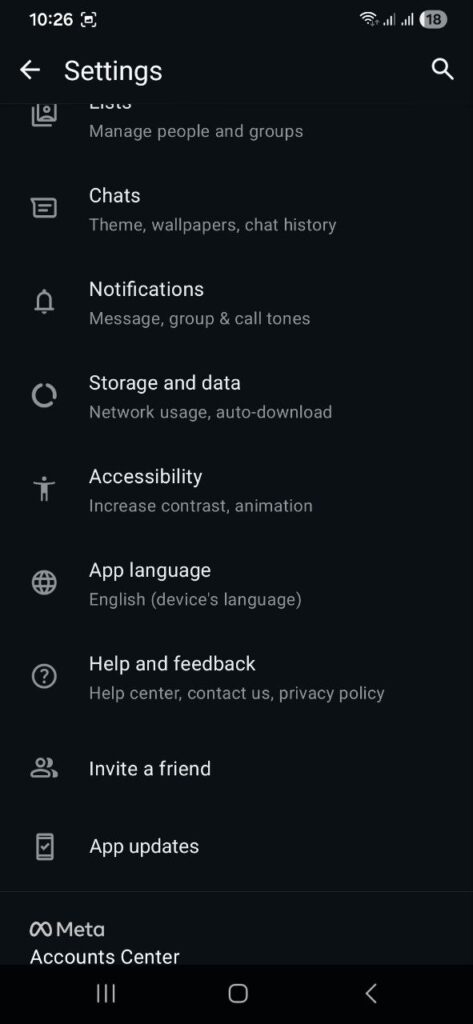
Connection issues are the most common causes of WhatsApp problems, such as messages stuck with a single grey tick, failing calls, and media that won’t download.
Common Causes
✔ Weak or unstable Wi-Fi or mobile data connections
✔ Background data restrictions enabled
✔ Server interruptions on WhatsApp’s end
Troubleshooting Steps
✅ Check Internet Connection
Make sure both Wi-Fi and mobile data are working. Try switching between them to find a stronger connection.
✅ Restart Network Hardware
Turn off your router or mobile data, wait a moment, then turn it back on. A fresh network reset often resolves temporary disconnections.
✅ Toggle Airplane Mode
Turn on Airplane mode, wait 10 seconds, then turn it off; this forces your phone to reconnect to the network.
✅ Update WhatsApp
Always use the latest version of WhatsApp from the official app store. Updates often fix bugs and connection issues.
✅Clear Cache (Android Only)
Go to Settings → Apps → WhatsApp → Storage → Clear Cache. This removes temporary files that might interfere with connectivity.
3. Backup & Restore Problems
One of the most important features of WhatsApp is the ability to back up your chats and media, especially before switching phones.
a) Backup Doesn’t Work
If your chats are not backing up:
✔ Ensure there’s enough space in your cloud storage (Google Drive or iCloud).
✔ Check that WhatsApp has permission to access storage, contacts, and the network.
✔ Go to WhatsApp → Settings → Chats → Chat backup and confirm the schedule and account.
b) Restore Fails Partway Through
Restores often fail due to:
✔ Using the wrong phone number or cloud account compared to the original backup.
✔ Corrupt or incomplete backup files.
✔ Switching from Android to iOS (or vice versa) without proper tools.
Solution
For transferring between devices or stubborn restore problems, tools like Dr Fone – WhatsApp Transfer** can help move WhatsApp chats between Android and iPhone*, and even back them up or export them to your computer.
4. Media Issues – Images & Videos Won’t Download
Users often report that image or video files won’t download or become stuck.
Why It Happens
✔ Poor internet connection
✔ Not enough storage on the phone
✔ Wrong media auto-download settings
✔ File format or size issues
Fixes
✔ Check Storage:
Make sure you have enough free space on your device.
✔ Adjust Auto-Download Settings:
Go to Settings → Data and storage usage → Media auto-download and select what should download over Wi-Fi or mobile data.
✔ Correct Date & Time:
Incorrect device time settings can block downloads. Set the time to update automatically.
✔ Reopen WhatsApp:
Sometimes a quick close and reopen resolves temporary glitches.
5. Call & Notification Problems
Voice/Video Calls Not Connecting
✔ A stable internet connection is essential — especially for video calls.
✔ Check Camera/Mic permissions: Go to phone Settings → Apps → WhatsApp → Permissions and enable them.
Notifications Not Appearing
✔ Make sure notifications are enabled in both app settings and your phone’s OS settings.
✔ Turn off Do Not Disturb mode if it’s on.
✔ Check battery optimization settings; they may block background notifications.
6. Contacts & Sync Problems
Sometimes WhatsApp can’t show all your contacts or newly added ones.
Solutions
✔ Enable Contacts permission:
Go to Phone Settings → Apps → WhatsApp → Permissions → Contacts and allow access.
✔ Refresh Contacts:
Open WhatsApp, tap New Chat, and hit Refresh.
✔ Restart WhatsApp after adding new contacts so the app can resync.
7. WhatsApp Web / Desktop Issues
WhatsApp Web relies on your phone’s connection. If it’s not syncing:
Common Fixes
✔ Ensure your phone has an active internet connection.
✔ Scan the QR code again.
✔ Update your browser or desktop app.
✔ Clear browser cache if WhatsApp Web still fails.
Errors like No valid QR code detected usually occur due to a poor connection or outdated software.
8. Privacy Settings & Miscellaneous Features
Read Receipts or ’Last Seen’ Won’t Disable
If these settings don’t change,
go to: Settings → Account → Privacy, and toggle off Read Receipts or Last Seen.
9. Advanced / Hidden Errors (Business & API)
Business users or developers might face backend errors such as rate limits, API authentication issues, or broadcast restrictions. These usually require:
✔ Monitoring API call limits and usage patterns.
✔ Refreshing tokens or fixing authentication on API clients.
10. Final Best Practices Checklist
Before closing a ticket or completely reinstalling WhatsApp, try this checklist:
✅ Ensure your phone has a stable internet connection. (WhatsApp Help Center)
✅ Update WhatsApp to the latest version. (Dr.Fone)
✅ Clear app cache or storage if corrupted. (Dr.Fone)
✅ Check permissions (Contacts, Storage, Camera, Mic). (Dr.Fone)
✅ Enable backups and verify cloud configuration. (Wappbiz)
✅ Consider reinstalling if nothing else resolves the issue. (WhatsApp Help Center)
Conclusion
WhatsApp is a powerful communication tool, but like any software, it can experience issues — from media download failures to backup problems and connectivity troubles. With this complete troubleshooting guide, you can confidently identify and resolve most issues on your own. If problems persist, don’t hesitate to contact WhatsApp Support directly through the app (Settings → Help → Contact Us)
Hurrah! In the end I got a webpage from where I can in fact take valuable data regarding my study and knowledge.
thanks