


If your Android phone battery drains too fast, you are not alone. Battery problems are one of the most common issues Android users face every day. Even brand‑new phones can lose battery quickly if the settings are not optimized properly.
In this complete guide, you will learn 100% working methods to save battery on Android. These tips work on Samsung, Tecno, Infinix, Xiaomi, Oppo, Vivo, Huawei, Pixel, and almost all Android phones. No apps are required unless mentioned.
Why Android Battery Drains Fast
Before fixing the problem, it is important to understand why your phone battery drains quickly.
Common Reasons:
- Too many apps running in the background
- High screen brightness
- Mobile data, GPS, Bluetooth always ON
- Old battery or poor charging habits
- Apps not optimized for battery
- Weak network signal
- Phone overheating
Now let’s fix these problems step by step.
1. Reduce Screen Brightness (Most Important)
Your phone screen consumes more battery than any other component.
What to Do:
- Go to Settings
- Tap Display
- Reduce brightness to 30–50%
- Enable Adaptive / Auto Brightness
💡 Tip: Avoid using full brightness unless necessary, especially outdoors.
2. Reduce Screen Timeout
If your screen stays ON for a long time, battery drains faster.
Recommended Settings:
- Screen timeout: 30 seconds or 1 minute
Steps:
- Settings → Display
- Tap Screen timeout
- Select 30 sec / 1 min
3. Turn On Battery Saver Mode
Battery Saver limits background activity and saves power.
How to Enable:
- Settings → Battery
- Turn ON Battery Saver

You can also enable Auto Battery Saver at 20% or 30%.
4. Disable Background Apps (Very Effective)
Many apps run in the background even when you are not using them.
Steps:
- Settings → Battery → App usage
- Tap apps you don’t use often
- Select Restrict background activity
⚠️ Do NOT restrict WhatsApp, Phone, or important apps.
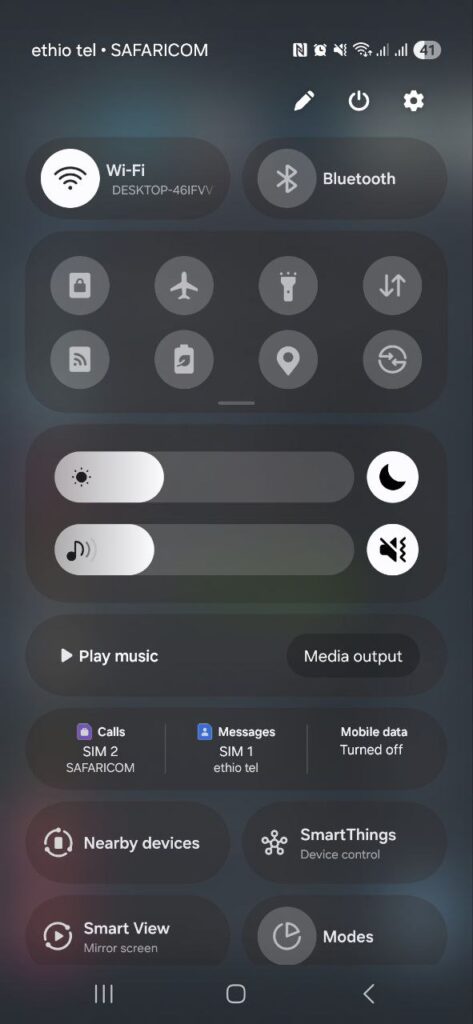
5. Turn Off Unused Features
Always‑ON features consume battery silently.
Turn OFF When Not Needed:
- Bluetooth
- GPS / Location
- Mobile Hotspot
- NFC
- Nearby device scanning
Quick Tip: Use Quick Settings panel to turn them off.
6. Use Dark Mode (OLED Phones)
If your phone has an AMOLED or OLED display, Dark Mode saves battery.
Enable Dark Mode:
- Settings → Display
- Turn ON Dark Mode
Apps like YouTube, Chrome, Instagram also support Dark Mode.
7. Reduce App Notifications
Each notification wakes your screen and drains battery.
What to Do:
- Settings → Notifications
- Disable notifications for unnecessary apps
Only keep notifications for important apps like calls and messages.
8. Update Apps & Android System
Old apps may have bugs that drain battery.
Steps:
- Update apps from Google Play Store
- Settings → Software Update → Check for updates
Updates often include battery optimization improvements.
9. Limit Social Media Apps Usage
Apps like Facebook, TikTok, Instagram, and Snapchat are battery killers.
Tips:
- Use Lite versions (Facebook Lite, Messenger Lite)
- Restrict background activity
- Reduce screen time
10. Turn Off Always‑On Display (AOD)
Always‑On Display looks good but uses battery.
Disable AOD:
- Settings → Lock Screen
- Turn OFF Always‑On Display
11. Disable Vibration & Haptic Feedback
Vibration motor consumes more power than sound.
Steps:
- Settings → Sound & Vibration
- Reduce or disable vibration
12. Avoid Live Wallpapers
Live wallpapers consume battery continuously.
Solution:
- Use static wallpapers instead
13. Keep Phone Temperature Cool
Heat damages battery life.
Avoid:
- Using phone while charging
- Playing heavy games for long hours
- Leaving phone under sunlight
14. Check Battery Usage Stats
Android shows which apps drain your battery.
Steps:
- Settings → Battery
- Tap Battery Usage
- Identify power‑hungry apps
Take action by restricting or uninstalling them.
15. Charge Your Phone Correctly
Bad charging habits reduce battery health.
Best Charging Practices:
- Charge between 20% – 80%
- Avoid overnight charging
- Use original or certified charger
- Avoid fast charging all the time
16. Reset Network Settings (Optional)
Poor signal causes phone to work harder.
Steps:
- Settings → Reset options
- Reset Network settings
⚠️ This will remove Wi‑Fi and Bluetooth connections.
Frequently Asked Questions (FAQ)
Does closing apps save battery?
Yes, but only apps running in the background continuously.
Does battery saver damage phone?
No. Battery Saver is safe and recommended.
Which app drains battery most?
Social media, games, GPS apps, and streaming apps.
Final Thoughts
Saving battery on Android is easy if you use the right settings. You don’t need battery‑saving apps that show ads or slow your phone. By following the steps above, you can:
- Increase screen‑on time
- Reduce overheating
- Improve battery health
- Make your phone last all day
✅ These methods are 100% working and tested on multiple Android devices.
If this guide helped you, share it with others and check more tips on KasuTechTips for Android, Windows, and tech solutions.
Related Posts:
- How to Fix Slow Android Phone
- Phone Heating Problem – Causes & Fixes
- Best Android Settings for Performance