


Few things are more frustrating than a PC that refuses to boot. One of the most common startup failures is the “winload.efi missing or corrupted” error, often paired with error code 0xC0000098. It usually appears with a message like:
“Your PC needs to be repaired. The operating system couldn’t be loaded because a critical system driver is missing or contains errors. File: \Windows\System32\winload.efi. Status: 0xC0000098.”
This issue affects Windows 10, Windows 11, and even Windows 8 systems. The good news? In most cases, it’s fixable without losing your data. This guide explains what the error means, why it happens, and how to fix it step by step—clearly and effectively.
What Is winload.efi and Why Does Error 0xC0000098 Happen?
The winload.efi file is a core part of the Windows boot process on UEFI-based systems. Its job is to load the Windows kernel and essential drivers during startup. If this file can’t be found or verified, Windows simply can’t start.
Error 0xC0000098 usually points to a corrupted or incomplete Boot Configuration Data (BCD). Think of the BCD as a roadmap that tells your PC where Windows is installed and how to load it. When this roadmap breaks, the boot process stops.
In short:
No valid BCD → winload.efi can’t load → Windows fails to boot.
Common Causes of the winload.efi Error
This error doesn’t appear randomly. The most frequent causes include:
- Corrupted BCD due to power loss, disk errors, or failed updates
- Hard drive problems, including bad sectors or file system corruption
- Incorrect UEFI or Secure Boot settings
- Malware or boot-sector infections
- Interrupted Windows updates or OS installations
- Hardware changes, such as new drives or RAM incompatibility
Sudden shutdowns, overclocking instability, or cloning a Windows drive can also trigger it.
Symptoms You’ll Notice
You’ll usually see this error during startup, right after the system POST screen. Common messages include:
- File: \Windows\System32\winload.efi
- Status: 0xC0000098
- “The Boot Configuration Data file doesn’t contain valid information for an operating system.”
In some cases, your PC may loop into Automatic Repair without success.
What You Need Before Fixing It
Prepare these first:
- A bootable Windows USB or DVD (same version as your system)
- Access to UEFI/BIOS settings
- A backup of important files (recommended)
- Basic comfort with Command Prompt
- A little patience—some fixes take time
If you’re on a laptop, keep it plugged in.
Step-by-Step Fixes (Try in Order)
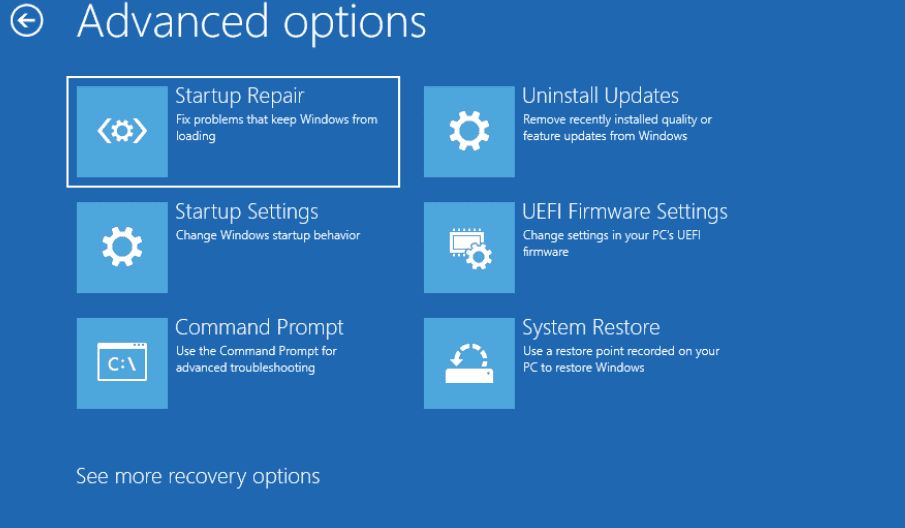
1. Run Automatic Startup Repair
The easiest fix.
- Boot from your Windows installation media
- Click Repair your computer
- Go to Troubleshoot → Advanced options → Startup Repair
- Let Windows diagnose and repair the issue
- Restart and test
2. Rebuild the Boot Configuration Data (BCD)
A proven solution for error 0xC0000098.
- Boot into WinRE → Command Prompt
- Run these commands one by one:
bootrec /fixmbr
bootrec /fixboot
bootrec /scanos
bootrec /rebuildbcd
If no installations are found, rename the old BCD and rebuild it manually. Restart afterward.
3. Disable Secure Boot (Temporarily)
- Enter UEFI/BIOS settings
- Disable Secure Boot
- Ensure the correct boot mode (UEFI or Legacy)
- Save changes and reboot
⚠️ Re-enable Secure Boot once the system works again.
4. Repair System Files (SFC & DISM)
From WinRE Command Prompt:
DISM /Online /Cleanup-Image /RestoreHealth
sfc /scannow /offbootdir=C:\ /offwindir=C:\Windows
Restart once complete.
5. Check the Hard Drive (CHKDSK)
chkdsk C: /f /r
This scans for and repairs disk errors. Large drives may take time.
6. Use System Restore or Reset This PC
- System Restore: Roll back to a point before the error
- Reset This PC: Reinstall Windows while keeping your files
Both options are available in WinRE → Troubleshoot.
7. Clean Install Windows (Last Resort)
If nothing works, back up your data and perform a fresh Windows installation. This guarantees a fix but removes installed apps and settings.
Final Thoughts
The winload.efi missing or corrupted (0xC0000098) error looks serious, but in most cases, it’s recoverable with the right steps. From automatic repair to rebuilding the BCD, these solutions cover both beginner-friendly and advanced fixes.
Take it step by step, don’t panic, and you’ll likely have your system booting normally again—without losing your files.