


Viruses and malware are common problems for Android phones and PCs today. They can slow down your device, show unwanted ads, steal personal information, and even damage important system files. Many users do not notice their device is infected until it starts acting strangely. Knowing how to remove a virus properly can save your data, boost performance, and protect your privacy.In this guide, you will learn how to identify virus symptoms, remove viruses from your Android device and PC, and prevent future infections using simple and effective methods.
Common Signs Your Device Has a Virus
Before removing a virus, it’s important to know the warning signs. These symptoms are common on both Android phones and PCs:
• The device becomes very slow or freezes often
• The battery drains faster than normal (Android)
• Unexpected pop-up ads appear
• Unknown apps or programs install automatically
• The browser homepage or search engine changes without permission
• Data usage increases suddenly
• Files disappear or become corrupted
If you notice one or more of these signs, your device may be infected.
How to Remove a Virus from Android (Step-by-Step)
Android devices are popular targets for malware because many users install apps from unknown sources. Follow the steps below to clean your Android phone safely.
Step 1: Restart Your Android in Safe Mode
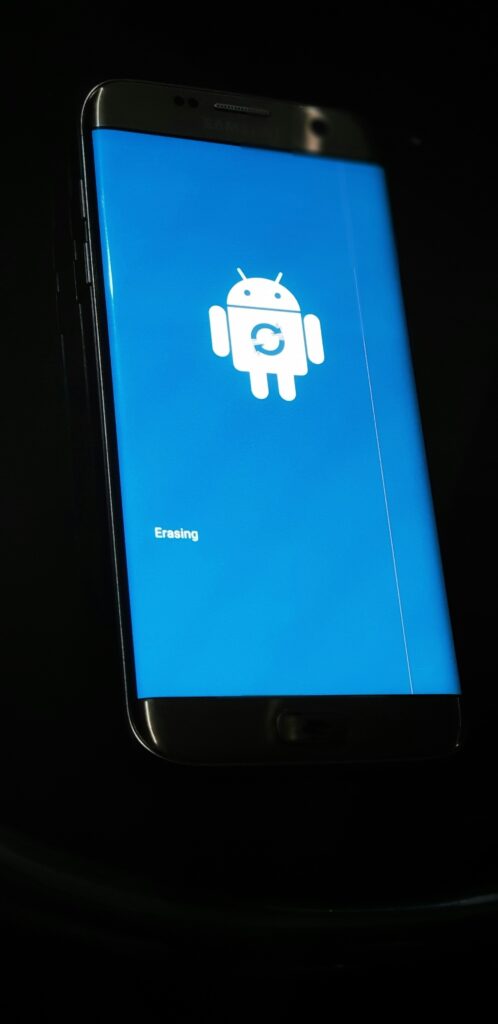
Safe Mode disables all third-party apps, which helps you identify and remove malicious apps.
How to enter Safe Mode:
- Press and hold the Power button
- Tap and hold Power Off
- Select Safe Mode
- Restart your phone
Once in Safe Mode, only system apps will run.
Step 2: Find and Remove Suspicious Apps

Go to Settings → Apps → Manage Apps and carefully review the list.
Look for apps that:
- You don’t remember installing
- Hasno name or icon
- Ask for unnecessary permissions
- Are not from the Google Play Store
Select the suspicious app and tap Uninstall. If uninstall is disabled, remove admin permission first.
Step 3: Remove Device Administrator Access
Some malware hides by enabling admin access.
- Go to Settings → Security → Device Admin Apps
- Disable any unknown or suspicious apps
- Return to the app list and uninstall it
Step 4: Scan with a Trusted Antivirus App
Install a reputable antivirus app from the Google Play Store, such as:
- Malwarebytes
- Bitdefender
- Avast Mobile Security
Run a full system scan and follow the instructions to remove detected threats.
Step 5: Clear Browser Data and Cache
Malware often hides in browser data.
- Open Settings → Apps → Browser
- Tap Storage
- Clear Cache and Data
Do this for all browsers installed on your phone.
Step 6: Update Android System
System updates include security patches.
- Go to Settings → Software Update
- Download and install the latest version
This helps block known security vulnerabilities.
How to Remove a Virus from PC (Windows)
Windows PCs are commonly targeted by viruses, ransomware, spyware, and trojans. Follow these steps to clean your system effectively.
Step 1: Disconnect from the Internet
Unplug your Ethernet cable or turn off Wi-Fi to stop the virus from sending data or downloading more malware.
Step 2: Restart Windows in Safe Mode
Safe Mode runs only essential system services.
Steps:
- Press Windows + R, type msconfig, and press Enter
- Go to the Boot tab
- Check Safe Boot → Minimal
- Restart your PC
Step 3: Run Windows Security Scan
Windows has a built-in antivirus called Windows Security (Defender).
- Open Windows Security
- Click Virus & Threat Protection
- Select Scan Options
- Choose Full Scan
- Start the scan
Allow the scan to complete and remove all detected threats.
Step 4: Use a Trusted Antivirus or Malware Removal Tool
For deeper infections, use tools like:
- Malwarebytes
- Kaspersky
- ESET Online Scanner
Install only one antivirus at a time to avoid conflicts.
Step 5: Uninstall Suspicious Programs
- Open Control Panel → Programs → Programs and Features
- Sort by Installed Date
- Remove unknown or suspicious programs
Be careful not to delete essential system software.
Step 6: Delete Temporary Files
Temporary files may contain malware remnants.
- Press Windows + R
- Type %temp% and press Enter
- Delete all files in the folder
You can also use Disk Cleanup for better results.
Step 7: Reset Browser Settings
Viruses often hijack browsers.
- Open your browser settings
- Reset to default settings
- Remove unknown extensions
Repeat this for Chrome, Edge, Firefox, or any installed browser.
Step 8: Update Windows and Drivers
Go to Settings → Windows Update and install all available updates. Updated systems are harder to infect.
What to Do If the Virus Cannot Be Removed
If malware keeps coming back, consider these options:
- System Restore (PC) to a clean restore point
- Factory Reset (Android) after backing up data
- Reinstall Windows as a last option
Always back up important files before performing a reset.
How to Prevent Viruses in the Future
Prevention is better than removal. Follow these safety tips:
- Install apps only from official stores
- Avoid cracked or pirated software
- Do not click on unknown links or ads
- Use a reliable antivirus program
- Keep your system and apps updated
- Enable Google Play Protect on Android
- Use strong passwords and two-factor authentication
Final Words: Viruses can seriously affect your Android phone or PC, but with the right steps, they can be removed safely. Regular scanning, system updates, and cautious browsing habits are the best ways to stay protected. By following this guide, you can clean your device, enhance its performance, and maintain the security of your personal data.