

Introduction
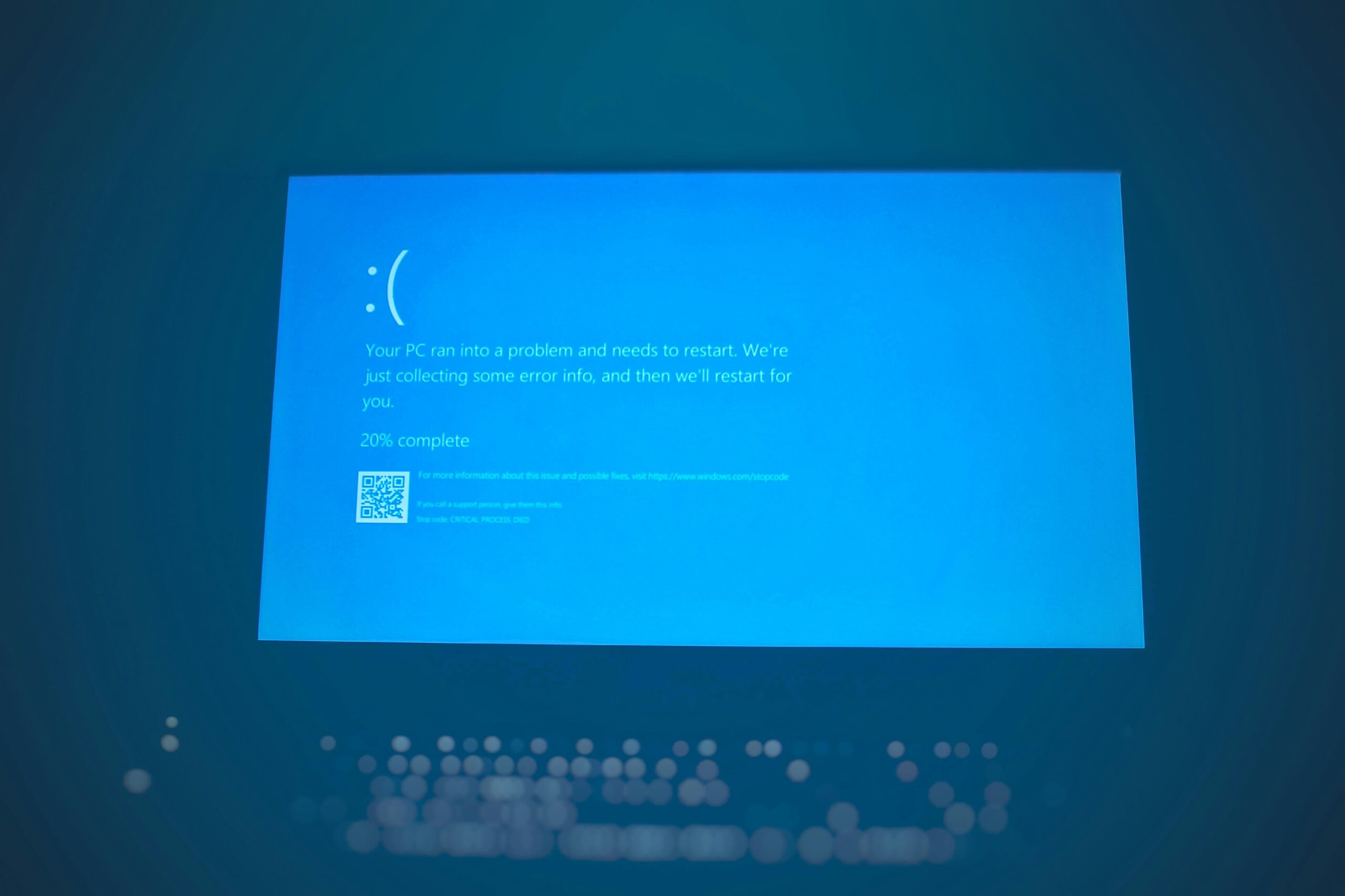
Many Windows users deal with a frustrating issue where their computer restarts without warning. This can happen during work, gaming, watching videos, or even when the PC is idle. Unexpected restarts may lead to data loss, disrupt important tasks, and lower system performance.
The Windows restart problem can stem from software errors, hardware issues, overheating, driver conflicts, malware, or incorrect system settings. The good news is that most of these issues can be resolved without getting a new computer.
In this guide, we will explain why Windows restarts automatically and provide practical, step-by-step solutions that anyone can follow, including beginners.
Common Symptoms of the Windows Restart Problem
Before fixing the issue, it is important to understand the symptoms:
• Windows restarts automatically without any error message
• PC restarts during startup
• Computer restarts while gaming or under heavy usage
• Blue Screen of Death (BSOD) followed by a restart
• Restart loop where the PC keeps restarting repeatedly
If your system shows any of these signs, follow the solutions below
Main Causes of Windows Automatic Restart
Windows may restart automatically for these reasons:
1. Overheating (CPU or GPU temperature too high)
2. Faulty or outdated drivers
3. Corrupted system files
4. Windows Update errors
5. Power supply problems
6. Malware or virus infection
7. RAM or hard disk errors
8. Automatic restart setting enabled
9. BIOS or firmware issues
Now, let’s fix these problems one by one.
Solution 1: Disable Automatic Restart in Windows Settings
By default, Windows is set to restart automatically after a system failure. Disabling this option helps you identify the real error.
Steps:

- Press Windows + R
- Type sysdm.cpl (the Windows System Properties tool) and press Enter.
- Go to the Advanced tab.
- Click Settings under Startup and Recovery
- Uncheck Automatically restart
- Click OK and restart your PC
✅ This prevents sudden restarts and shows error messages instead.
Solution 2: Check CPU and GPU Temperature (Overheating Issue)
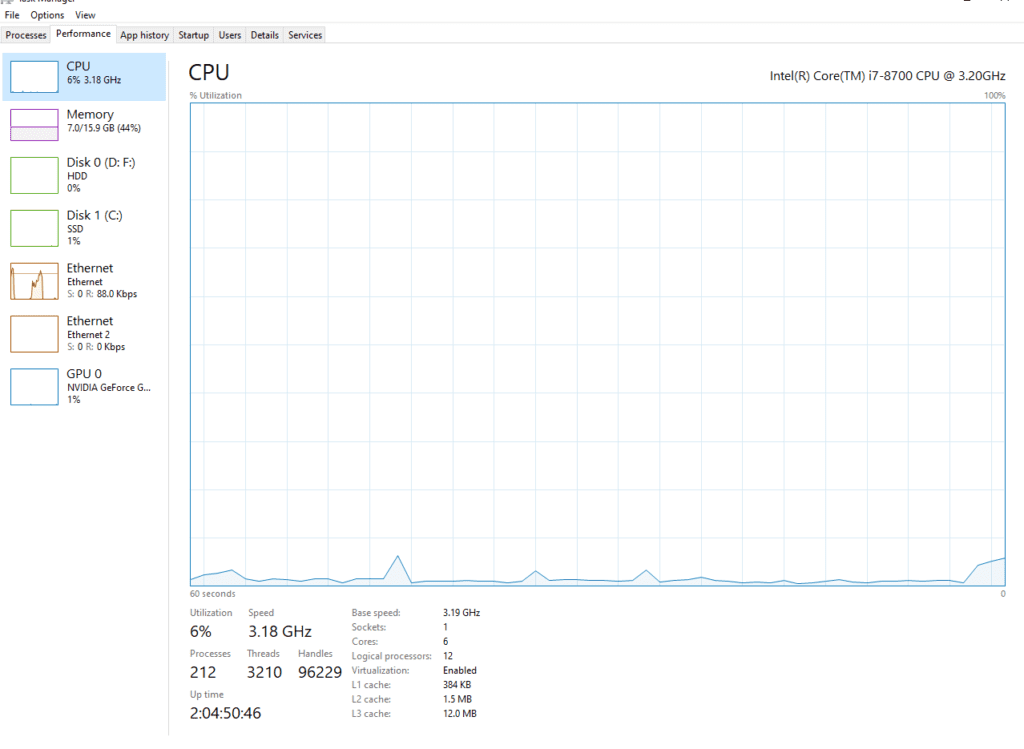
Overheating is one of the most common causes of automatic restarts.
How to Fix Overheating:
• Clean dust from fans and vents
• Ensure proper airflow inside the case
• Replace old thermal paste
• Use a cooling pad (for laptops)
• Avoid placing a laptop on soft surfaces
Recommended Temperature:
• CPU: Below 80°C
• GPU: Below 85°C
You can use tools like HWMonitor or Core Temp to check temperatures.
Solution 3: Update or Reinstall Device Drivers

Faulty drivers can cause Windows to crash and require restarts.
Steps to Update Drivers:
- Right-click This PC
- Select Manage
- Open Device Manager
- Right-click important drivers (Display, Network, Chipset)
- Click Update driver
If updating doesn’t help:
• Uninstall the driver
• Restart Windows
• Reinstall the latest driver from the official website
Solution 4: Scan and Repair Corrupted System Files

Corrupted Windows system files can cause instability.
Run System File Checker (SFC):
- Open Command Prompt as Administrator
- Type:
- sfc /scannow
- Press Enter and wait for completion.
Run DISM Tool: (Deployment Imaging Service and Management Tool)
DISM /Online /Cleanup-Image /RestoreHealth
Restart your PC after the scan.
Solution 5: Check RAM (Memory) Errors
Faulty RAM can cause random restarts.
Steps to Test RAM:
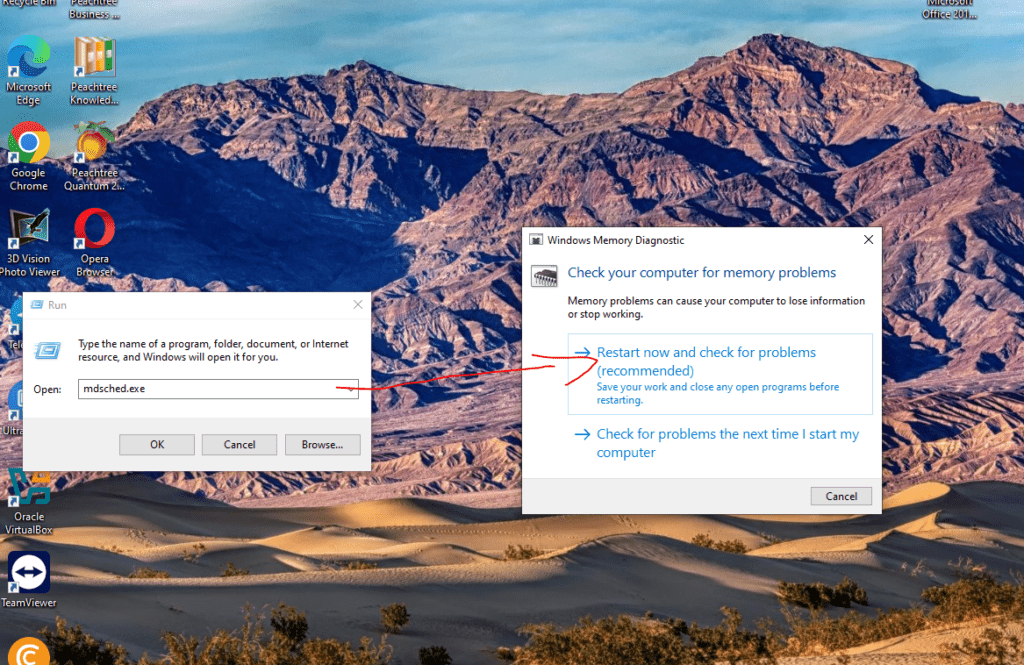
- Press Windows + R
- Type mdsched.exe
- Choose Restart now and check for problems
Windows will test memory during the restart and display the results.
If errors are found:
• Clean RAM slots
• Try using one RAM stick
• Replace faulty RAM
Solution 6: Check Hard Disk Errors

Bad sectors or disk errors can crash Windows.
Steps:
- Open Command Prompt as Administrator
- Type:
- chkdsk /f /r
- Press Enter
- Restart your PC
This scan may take time, but it is very effective.
Solution 7: Disable Fast Startup
Fast Startup sometimes causes restart loops.
Steps:
- Open Control Panel
- Go to Power Options
- Click Choose what the power buttons do.
- Click Change settings that are currently unavailable.
- Uncheck Turn on fast startup
- Save changes and restart
Solution 8: Check Power Supply (PSU) or Battery Issues
A weak power supply can cause sudden restarts.
Fixes:
• Use a stable power source
• Replace damaged power cables
• Test with another PSU (for desktop)
• Replace old laptop battery
Solution 9: Scan for Virus and Malware
Malware can force your PC to restart.
Steps:
- Open Windows Security
- Go to Virus & threat protection.
- Click Quick scan or Full scan.
You can also use trusted tools like Malwarebytes.
Solution 10: Uninstall Problematic Software
Recently installed programs may conflict with Windows.
Steps:
- Open Control Panel
- Click Programs and Features
- Uninstall recently installed apps.
- Restart your PC
Solution 11: Check Windows Update Errors
Incomplete updates may cause restarts.
Fix:
• Go to Settings → Windows Update
• Install all pending updates
• Restart your system. If the problem started after an update:
• Uninstall the latest update from Update History
Solution 12: Update BIOS or Firmware (Advanced Users).
An outdated BIOS can cause hardware conflicts.
⚠️ Warning: Update BIOS only if necessary and follow manufacturer instructions carefully.
Solution 13: Perform a Clean Boot
A clean boot helps identify startup conflicts.
Steps:
- Press Windows + R
- Type msconfig
- Go to Services
- Check Hide all Microsoft services
- Click Disable all
- Restart your PC
Solution 14: Reset or Reinstall Windows (Last Option)
If nothing works, resetting Windows may solve the issue.
Reset Windows:
• Go to Settings → Recovery
• Select Reset this PC
• Choose Keep my files
This reinstalls Windows without deleting personal data.
Prevention Tips
• Keep Windows and drivers updated
• Clean your PC regularly
• Use antivirus software
• Avoid installing unknown software
• Monitor system temperature
Conclusion
The Windows automatic restart problem can be caused by overheating, drivers, corrupted files, hardware failure, or system settings. By following the step-by-step solutions in this guide, you can identify the root cause and fix it permanently.