

When your HP laptop won’t turn on, it can be frustrating and concerning, especially when you have important work to do. The good news is that most power issues can be resolved in under 30 minutes with simple troubleshooting steps. In most cases, HP laptops fail to power on due to three common issues: a depleted battery that needs charging, loose power connections, or a system that requires a hard reset. Before assuming the worst, try these proven solutions that work for 90% of HP laptop power problems.
Immediate Solutions (Try These First)
Before diving into detailed troubleshooting, try these three quick fixes that resolve most HP laptop power issues:
Power Button Hard Reset - 30 seconds)
The easiest and most effective solution is performing a hard reset. Turn off your HP laptop completely, disconnect the AC adapter, and remove the battery if possible. Press and hold the power button for 15 seconds to discharge any residual electrical charge. This clears temporary configurations that may prevent your laptop from starting. Reconnect the power adapter (and battery if you removed it) and try turning on your laptop.
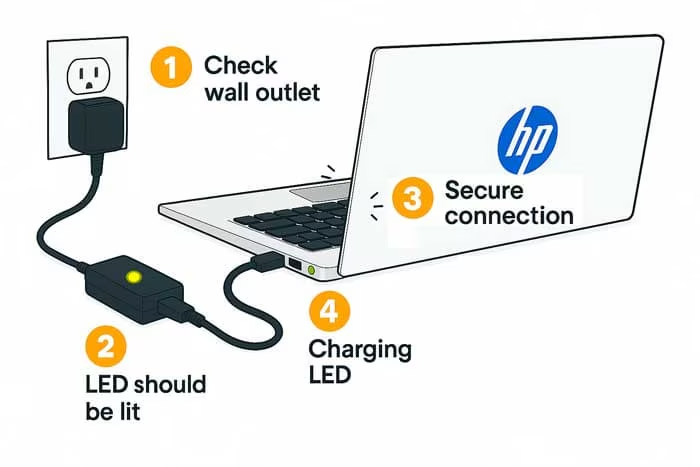
Check Power Connections—1 minute
Verify that your AC adapter is properly connected to both the laptop and wall outlet. The connection should be secure at both ends, with no wobbling or looseness. Check if the LED indicator on your power adapter brick is lit—this confirms power is flowing from the outlet. If your laptop has a charging LED near the power port, it should glow white, amber, or green when properly connected. Try a different wall outlet if the adapter LED isn’t
Step-by-Step Troubleshooting Guide
If the quick solutions didn’t work, follow this comprehensive troubleshooting guide to identify and fix your HP laptop’s power issue.
Step 1: Troubleshoot the Power Supply
Your HP laptop requires the correct power adapter to function properly and charge the battery. Using an incorrect or damaged adapter is one of the most common causes of power problems.
Verify you’re using the correct HP adapter
Always use the AC adapter that came with your HP laptop or an official HP replacement. Using third-party or incorrect voltage adapters can damage your battery and prevent your laptop from powering on. Check the adapter label for your model number - it should match your laptop’s requirements. If you need a replacement, visit parts.hp.com and enter your laptop model to find the correct adapter .
Check all power connections and cables
Examine the entire length of your power cable for any cuts, kinks, or exposed wires. Pay special attention to stress points near the adapter brick and where the cable connects to your laptop. The adapter brick itself should not be discolored, warped, or emit any burning smell. Check that the plug fits snugly into your laptop’s power port without wiggling. A loose connection often indicates port damage that requires professional