
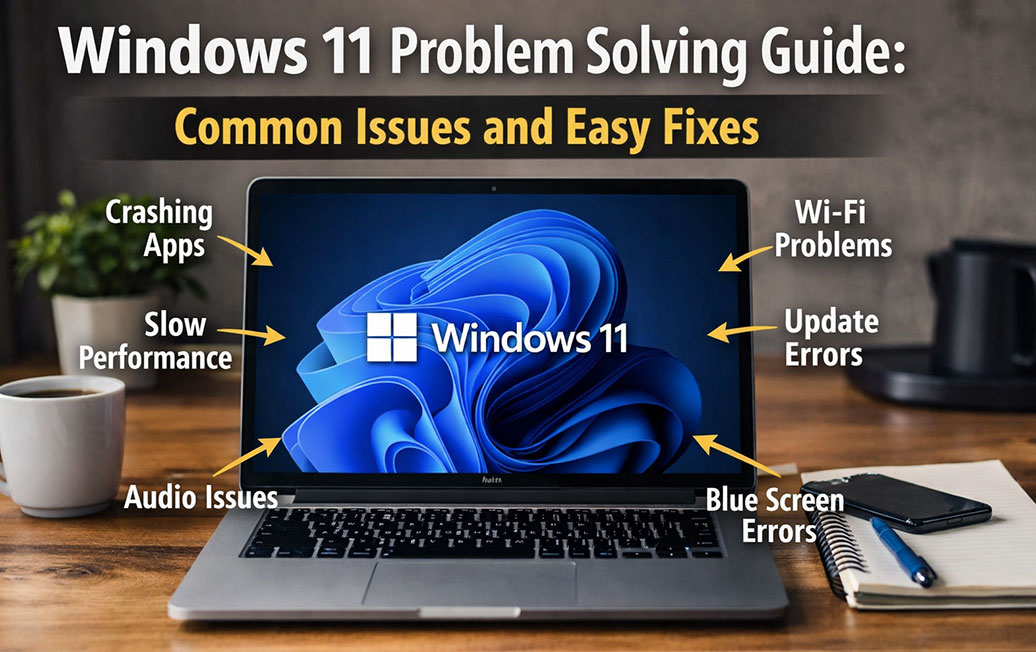

Windows 11 is Microsoft’s latest operating system. It offers a clean design, improved security, and better performance. However, like any operating system, users may run into problems such as slow performance, update failures, internet issues, or app crashes.
This guide explains common Windows 11 problems and provides easy, step-by-step solutions that anyone can follow. No advanced technical skills are needed.
Why Windows 11 Problems Happen
Windows 11 issues can happen due to:
- Incomplete or failed updates
- Outdated drivers
- Incompatible hardware or software
- Corrupted system files
- Network or configuration errors
The good news is most Windows 11 problems can be fixed using built-in tools and simple troubleshooting steps.
1. Windows 11 Update Not Installing

Problem
Windows 11 updates might fail to download, get stuck at a certain percentage, or show error codes.
Common Causes*
- Poor internet connection
- Low disk space
- Corrupted update files
- Disabled Windows Update services
Easy Fix
- Restart your PC
- Go to Settings → Windows Update → Check for updates
- Ensure you have at least 20 GB of free disk space
- Run the Windows Update Troubleshooter: Settings → System → Troubleshoot → Other troubleshooters
- Temporarily disable third-party antivirus software windowscentral
2. Windows 11 Running Slow

Problem
Your PC feels slow, apps open slowly, or the system frequently freezes.
Common Causes
- Too many startup apps
- Low RAM or storage
- Background apps using CPU
- Old device drivers
Easy Fix
- Disable startup apps: Press Ctrl + Shift + Esc → Startup Apps
- Free up storage using Storage Sense
- Update graphics and chipset drivers
- Restart your PC regularly asus
Tip: SSD storage significantly improves Windows 11 performance.
3. Wi-Fi or Internet Not Working

Problem
Wi-Fi disconnects, the internet is slow, or it shows No Internet.
Common Causes
- Router issues
- Network driver problems
- Incorrect network settings
Easy Fix
- Restart your router and PC
- Run the Network Troubleshooter
- Update network drivers
- Reset network settings: Settings → Network & Internet → Advanced network settings → Network reset
4. Windows 11 Activation Problem

Problem
You see the “Activate Windows” watermark.
Common Causes
- Invalid product key
- Hardware changes
- Microsoft account sync issue
Easy Fix
- Make sure you are signed in with the correct Microsoft account
- Use the Activation Troubleshooter
- Re-enter your valid product key
- Check your internet connection
5. Apps Not Opening or Crashing
Problem
Apps crash, freeze, or fail to open.
Common Causes
- Corrupted app files
- Outdated app versions
- Compatibility issues
Easy Fix
- Update apps from the Microsoft Store
- Repair apps: Settings → Apps → Installed apps → Advanced options → Repair
- Reinstall the app if needed
- Run the app in compatibility mode
6. Blue Screen of Death (BSOD)
Problem
Your PC crashes and shows a blue screen with an error code.
Common Causes
- Driver conflicts
- Hardware failure
- Corrupted system files
Easy Fix
- Update all drivers
- Uninstall recently added software
- Run a system scan: Open Command Prompt as admin, run: sfc /scannow
- Check hardware (RAM, disk health)
7. Sound Not Working in Windows 11
Problem
No sound from speakers or headphones.
Common Causes
- Wrong output device selected
- Disabled audio service
- Audio driver issues
Easy Fix
- Check the volume mixer
- Select the correct output device
- Run the Audio Troubleshooter
- Update or reinstall audio drivers
8. Windows 11 Not Booting Properly
Problem
Windows 11 fails to start or gets stuck on the loading screen.
Common Causes
- Corrupted boot files
- Failed update
- Hardware issue
Easy Fix
- Use Startup Repair
- Boot into Safe Mode
- Restore the system to a previous restore point
- Reset Windows (keep files option)
9. File Explorer Not Responding
Problem
File Explorer freezes or crashes.
Easy Fix
- Restart File Explorer from Task Manager
- Clear the File Explorer cache
- Update Windows to the latest version
10. Built-In Windows 11 Troubleshooting Tools
Windows 11 includes automatic tools for fixing problems:
- Windows Update Troubleshooter
- Network Troubleshooter
- Audio Troubleshooter
- Printer Troubleshooter
- Power Troubleshooter
Path: Settings → System → Troubleshoot → Other troubleshooters
How to Keep Windows 11 Running Smoothly
To prevent future problems:
- Keep Windows updated
- Update device drivers regularly
- Avoid installing unknown software
- Use reliable antivirus protection
- Restart your PC weekly
Frequently Asked Questions (FAQ)
Is Windows 11 stable?
- Yes, Windows 11 is stable, but issues can arise from hardware or software conflicts.
Can Windows 11 problems be fixed without reinstalling?
- Most problems can be solved using troubleshooting tools and system repair options.
How often should I update Windows 11?
Always install security and feature updates when available.
Conclusion
Windows 11 is powerful and user-friendly, but occasional problems are normal. By following this guide, you can fix common issues quickly and keep your PC running smoothly. Understanding these solutions helps you save time, avoid unnecessary repairs, and enjoy a better Windows 11 experience.
- The Smart Ring, Re-imagined: The Definitive Guide to the All-New Oura Ring 5
- Massive Cyber Heist: Hacker Claims to Steal 10 Petabytes of Sensitive Data from China’s Supercomputer
- MAR10 Day 2026: Best Nintendo Deals, Free Switch Online Offer, and Mario’s 40th Anniversary Celebration
- Windows 12: Release Date, AI Integration, Hardware Requirements & What to Expect
- Samsung Galaxy S26 Ultra: The AI-Powered Flagship That Could Redefine Smartphones in 2026